Troubleshooting Common Issues with Free eSIM Test Qr Code Activation
8/30/2026
In short, what you'll discover in this article:
Explore common issues that block the activation of a free eSIM test QR code and learn practical solutions to overcome them. This guide helps you troubleshoot errors during scanning, network problems after activation, and tips to verify your eSIM works smoothly.
1. Introduction — Why Test a Free eSIM Test QR Code? Context and Objectives
Testing a free eSIM test QR code is an excellent way to understand how eSIM technology works without committing to a carrier or buying a plan. Many users curious about switching to eSIMs for travel or convenience want to try the setup process first.
However, activating these free test QR codes can sometimes present challenges that prevent successful installation.
This article focuses on troubleshooting those common activation problems and providing clear steps to help you complete the process confidently. Whether you want to confirm your phone’s compatibility or simply explore eSIM features, knowing how to fix activation issues is key.
2. What Is an eSIM and How Does the QR Code Work?
2.1 Definition: eSIM vs Physical SIM
An eSIM (embedded SIM) is a digital SIM embedded directly into your device, replacing the need for a physical SIM card. Unlike traditional SIMs, it allows remote provisioning of mobile plans via software, making switching carriers or plans easier.
2.2 Role of the QR Code (SM-DP+, Activation, and Provisioning)
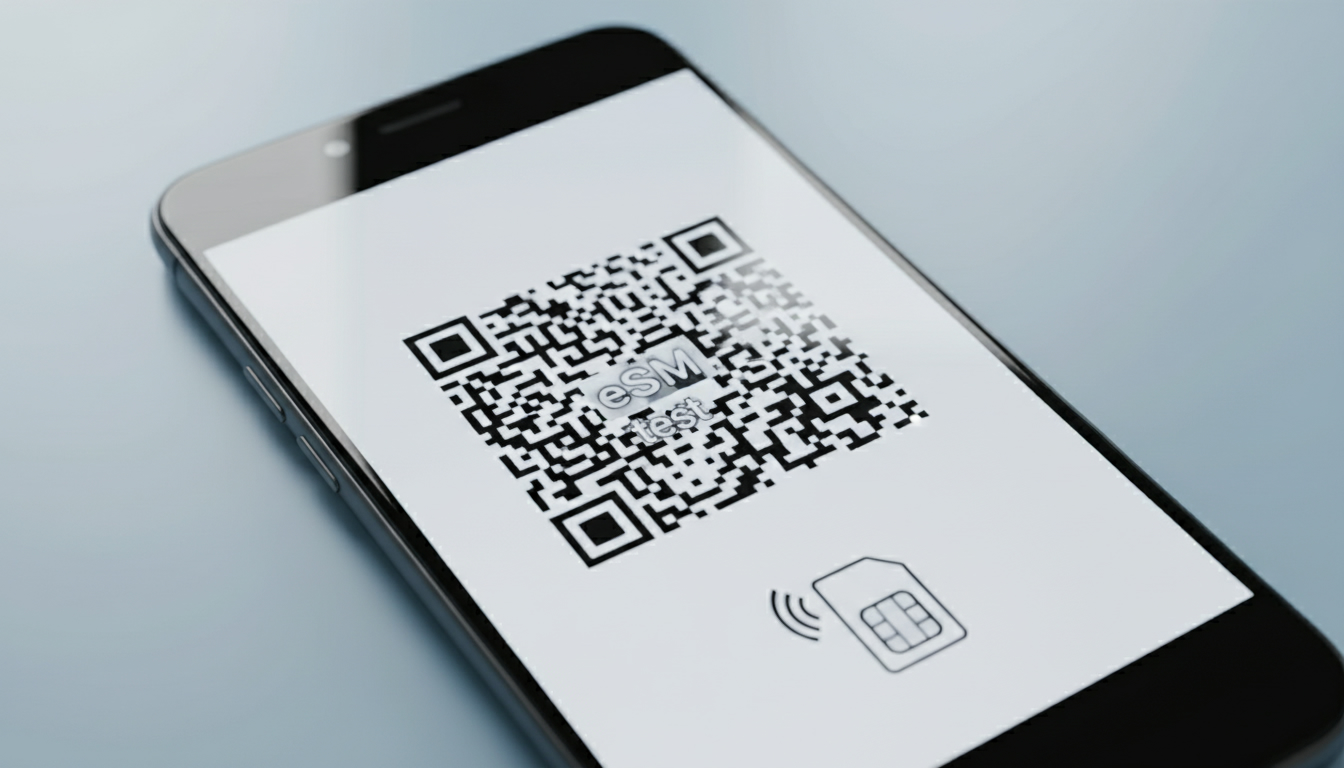
The QR code contains essential data for downloading and activating your eSIM profile from the carrier’s SM-DP+ server. Scanning this code initiates the provisioning process, which installs the profile on your device’s embedded SIM chip.
3. Prerequisites for Testing a Free eSIM Test QR Code
3.1 Compatible Devices and Required OS Versions
Before scanning a free eSIM test QR code, ensure your device supports eSIM technology:
- iPhones: iPhone XS or newer running iOS 12.1 or later
- Android devices: Many Samsung Galaxy S20/S21/S22 models, Google Pixel 3/4/5, and others with Android 10+
Older devices or outdated OS versions may fail to recognize or activate the profile.
3.2 Carrier/Region Conditions and Lock Status
Some carriers lock devices or restrict eSIM activation in certain regions. Verify that your phone is unlocked and supports eSIM activation in your country to avoid errors during setup.
4. Step-by-Step Guide: How to Scan and Activate a Free eSIM Test QR Code
4.1 Detailed Steps on iPhone (iOS)
- Open Settings > Cellular > Add Cellular Plan
- Use your camera to scan the free eSIM test QR code
- Enter any confirmation code if prompted (some providers require it)
- Follow on-screen prompts to complete installation
- Label your new plan for easy identification
4.2 Detailed Steps on Android (Samsung/Google/Others)
- Go to Settings > Connections > SIM Card Manager > Add Mobile Plan
- Scan the free eSIM test QR code using your camera
- Confirm activation details and accept terms
- Wait for the profile download and installation
- Restart your device if necessary
5. How to Verify Successful Activation (Tests to Perform)
5.1 Check Data Connection, SMS, and Calls
Once activated, test whether you can connect to mobile data networks, send SMS messages, or make calls if supported by the test profile.
5.2 Test APN Settings, Roaming, and Connection Stability
Verify that APN settings are correctly applied for internet access and check roaming capabilities if relevant for international travel testing.
6. Troubleshooting Common Issues When Testing Free eSIM Test QR Codes
6.1 QR Code Not Recognized / Error Message When Adding
- Ensure your camera focuses properly on the QR code
- Try scanning in good lighting conditions
- Confirm that the QR code is valid and not expired
- Restart your device before retrying
If errors persist, try downloading the QR code image and importing it manually via settings if supported.
6.2 No Network After Activation / Profile Inactive
- Check if airplane mode is off and cellular data is enabled
- Confirm your device is unlocked and supports multiple profiles if you have other active SIMs/eSIMs
- Remove and reinstall the profile if possible
- Reset network settings as a last resort
6.3 Special Cases: Dual eSIMs, Multiple Profiles, Reinstallation
Devices with multiple active eSIM profiles may face conflicts causing one profile not to activate properly. Disable or remove unused profiles before adding a new test one.
7. Security and Best Practices Around eSIM QR Codes
7.1 Risks (Malicious QR Codes, Profile Sharing) and Precautions
Only scan free eSIM test QR codes from trusted sources like official carrier websites or reputable apps such as RoamiApp offering free trials without hidden fees (source). Avoid sharing QR codes publicly as they can be misused.
8. Additional Tools and Methods for Testing (Tips)
8.1 Network Diagnostic Apps, Logs, Screenshots of Steps
Use network diagnostic apps available on iOS or Android to monitor connection quality after activation. Keep screenshots of each step during setup for troubleshooting help from support forums or communities.
9. Conclusion — Troubleshooting Your Free eSIM Test QR Code Activation
Activating a free eSIM test QR code can sometimes be tricky due to device compatibility issues, scanning errors, or network restrictions. By following this troubleshooting guide—checking prerequisites, carefully scanning the code, verifying activation success, and resolving common errors—you can confidently explore how an eSIM works without commitment.
For those interested in travel data savings after testing their free profile, consider checking verified discount codes from providers like Holafly or Maya through esimvouchers.com for affordable plans backed by real user reviews.
If you want an easy way to get started with free trials of global data plans via eSIMs without credit cards or contracts, apps like RoamiApp offer instant free activation codes with no hidden fees—perfect for testing before switching permanently (source).
FAQ
Why won't my phone recognize the free eSIM QR code?
Your device might not support eSIM or the OS version is outdated. Ensure your phone is compatible and updated. Also, check the QR code for damage or expiration and try scanning in good lighting.
How can I fix no network after activating the eSIM profile?
Make sure airplane mode is off and cellular data is enabled. Confirm your device is unlocked and supports multiple profiles. If issues persist, try reinstalling the profile or resetting network settings.
What devices are compatible with free eSIM test QR codes?
Compatible devices include iPhone XS or newer with iOS 12.1+, and many Android phones like Samsung Galaxy S20/S21/S22 or Google Pixel 3/4/5 running Android 10 or later.
Can I use multiple eSIM profiles simultaneously on one device?
Some devices support multiple active eSIM profiles, but conflicts can occur. To avoid activation issues, disable or remove unused profiles before adding a new test eSIM.
Where can I safely find free eSIM test QR codes to try?
Use trusted sources like official carrier websites or reputable apps such as RoamiApp, which offer free trial QR codes without hidden fees. Avoid scanning codes from unknown or public sources.

Emma Rossi
Emma is a travel and consumer-tech writer who hunts down the best deals for getting online abroad. At eSIM Vouchers she tracks verified coupons from the major providers and explains how to redeem them for the lowest price on travel data.