Gigatel eSIM Activation: Fix Common Problems Fast
11/15/2026
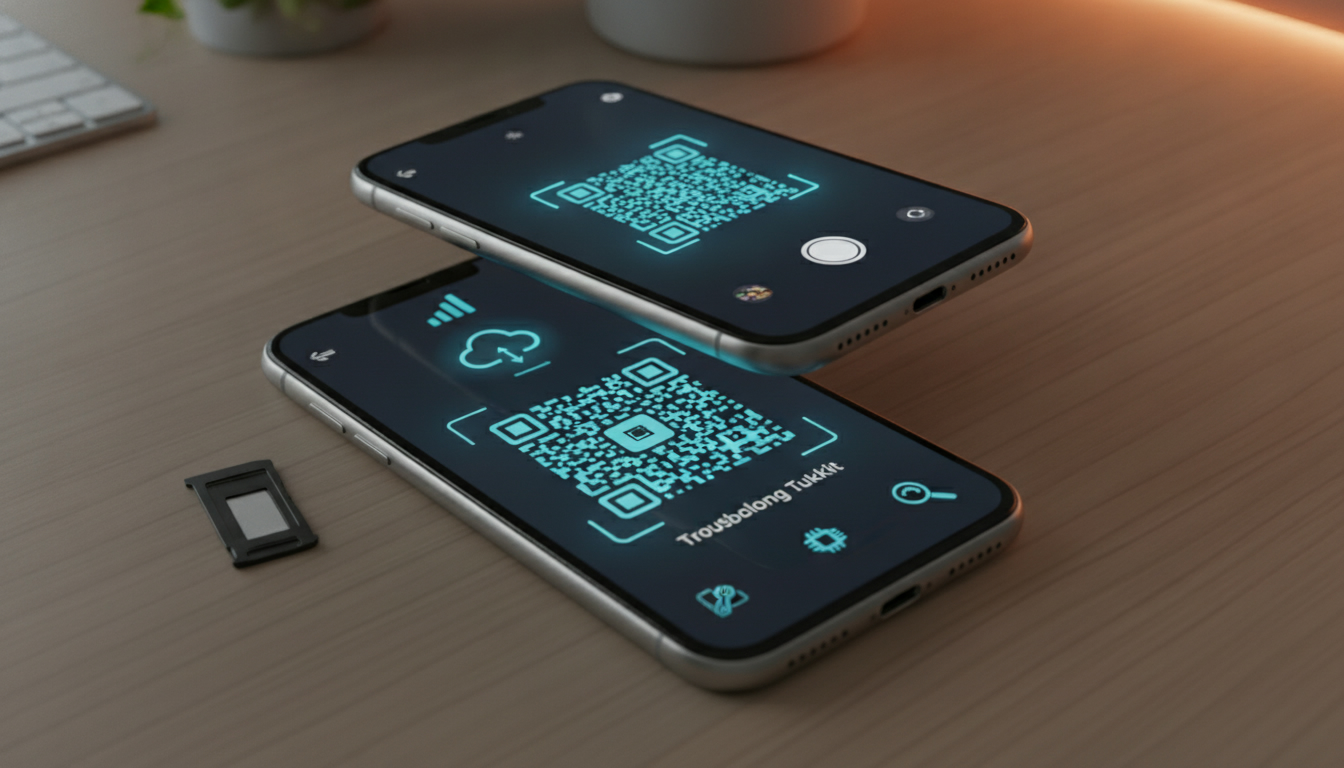
Gigatel eSIM activation usually fails for one of four reasons: the phone is locked, the eSIM profile was already installed, the QR code is being scanned from the same screen, or the phone has not reached the carrier network correctly. Check compatibility and activation status first; only then reset network settings or contact Gigatel customer service.
| Symptom | Most likely cause | First action |
|---|---|---|
| QR code will not scan | The code is displayed on the phone being configured | Open it on another screen or use manual entry |
| “Unable to activate” | No Wi-Fi, carrier lock, or expired installation state | Connect to stable Wi-Fi and check the phone’s lock status |
| eSIM appears but has no data | Mobile data or roaming is disabled | Select the Gigatel line for data and enable the required roaming setting |
| Signal shows “No Service” | Network registration or APN problem | Restart, choose network selection manually, then verify APN details |
| QR code says it was used | The profile has already been downloaded | Do not keep rescanning; ask Gigatel to reissue or reset it |
Gigatel describes its service as an authorized eSIM reseller rather than a mobile network operator. Its plans use accredited carrier partners, and its contact page advertises travel eSIM plans for 150+ countries.
That distinction matters: Gigatel may sell the plan, while the local partner controls the radio network, registration, and coverage.
Check the phone before trying the QR code again
Confirm eSIM support and carrier freedom
On Apple devices, eSIM support begins with the iPhone XS, iPhone XS Max, and iPhone XR, according to Apple’s device documentation. Later models can still vary by country and regional hardware configuration.
On Android, support depends on the exact model, market, and software version; two phones with the same commercial name may not have the same eSIM capability.
Open the cellular settings and look for an option such as:
- iPhone: Settings → Cellular → Add eSIM
- Google Pixel: Settings → Network & internet → SIMs → Add SIM
- Samsung Galaxy: Settings → Connections → SIM manager → Add eSIM
If there is no eSIM option, the problem is not the QR code. The handset may lack an eSIM chip, use a regional variant without eSIM, or have software that needs updating.
A carrier-locked phone can download a profile and still fail to use it. On an iPhone, check Settings → General → About → Carrier Lock.
Apple identifies an unlocked phone as showing “No SIM restrictions.” On Android, the wording differs by manufacturer, so the original carrier or retailer must confirm the lock status.
I always start by checking the phone’s EID and carrier-lock status before reinstalling anything. The EID identifies the embedded SIM hardware; if the handset has no EID, no QR code can make it eSIM-compatible.
Prepare a clean installation
Keep the physical SIM active if it provides the internet connection needed during setup, but use reliable Wi-Fi for downloading the Gigatel profile. Avoid hotel captive portals and weak airport Wi-Fi: the phone may show a Wi-Fi icon while still blocking the activation server behind a sign-in page.
Before scanning:
- Charge the phone and install pending operating-system updates.
- Disable any VPN or firewall profile temporarily.
- Set the phone’s date and time to automatic.
- Keep the Gigatel email or activation page available on a second device.
- Do not delete an existing travel eSIM until you know which line is failing.
The date-and-time check is easy to miss. If the clock is substantially wrong, certificate validation can fail even though the QR image is perfectly readable.
Fix QR-code and installation errors
A QR code is not the eSIM itself. It is an activation method that tells the phone where to retrieve the profile.
GSMA Specification SGP.22 defines the remote SIM provisioning architecture commonly used for consumer eSIM activation. The phone still needs internet access to download the profile after the camera reads the code.
If scanning fails, work through these steps:
- Display the QR code on a laptop, tablet, or second phone.
- On the handset, choose Add eSIM and scan the entire code without cropping.
- Increase screen brightness and remove glare.
- If Gigatel supplies an SM-DP+ address and activation code, select manual entry instead.
- Wait for the download to finish before switching apps or locking the screen.
Do not photograph a QR code and repeatedly scan a blurred copy. The camera may recognize the square pattern while missing characters in the encoded data, producing a misleading activation error.
If the message says the code has already been used, stop trying to install it. Many eSIM activation codes are single-use; a partial download, a previous phone, or an earlier setup attempt may have consumed the profile.
Deleting the eSIM does not necessarily make the original QR code reusable. Gigatel customer service needs to confirm whether the profile can be reissued.
Gigatel’s contact page states that support is available for its travel service, while its Trustpilot listing says the company typically replies within 24 hours. When contacting support, include the order number, phone model, EID, operating-system version, error wording, and the country where the eSIM will be used.
Do not send a screenshot containing payment details or your full email inbox.
Restore service after the profile installs
Select the correct line and data settings
A successful installation does not automatically make Gigatel the active data line. Open the SIM manager or Cellular settings and check all of the following:
- The Gigatel line is turned on.
- Mobile data is assigned to Gigatel.
- Data roaming is enabled if Gigatel’s instructions require it.
- The physical SIM is not being selected for mobile data.
- Automatic data switching is disabled while testing.
If the phone shows signal bars but apps cannot connect, the line may be registered for voice or signaling while data remains assigned to another SIM. This is particularly common on dual-SIM phones.
Restart after changing the data line. A restart forces the modem to reload the profile and request a fresh network registration.
If the phone connects briefly and then drops service, turn airplane mode on for 30 seconds, turn it off, and wait for the network list to refresh.
Check network selection and APN behavior
In the destination country, leave network selection on automatic first. If the phone displays “No Service,” try manual selection and test only the networks listed in Gigatel’s instructions.
A reseller cannot necessarily provide access to every network in a country; the available partner depends on the plan and destination.
APN settings control the gateway used for mobile data. If Gigatel supplies an APN, enter it exactly, including capitalization and punctuation.
Do not copy the APN from the physical SIM: that value belongs to a different operator and can leave the Gigatel line registered but data-disabled.
A practical field sign helps here: if the Gigatel line shows a network name and signal strength but websites fail, the modem has probably completed registration and the remaining fault is data routing, APN configuration, or the selected data SIM. If the screen says “No Service,” changing the APN will not solve a radio-registration problem.
Know when resetting helps—and when it makes things worse
Resetting network settings can clear a corrupted carrier configuration, but it also removes saved Wi-Fi networks, VPN settings, and Bluetooth pairings. I would advise against using a full factory reset for an eSIM problem; it destroys far more than it fixes and may leave you without the activation email or Wi-Fi credentials needed to reinstall.
Use this order instead:
- Restart the phone.
- Toggle airplane mode for 30 seconds.
- Confirm the Gigatel line and mobile-data selection.
- Recheck roaming and APN settings.
- Try manual network selection.
- Reset network settings only if the profile is still present but connectivity remains broken.
- Contact Gigatel before deleting the eSIM.
The distinction between an installed profile and an active service is crucial. Deleting an eSIM can remove the only usable copy of a single-use activation, while resetting network settings usually leaves the downloaded profile intact.
Take a screenshot of the SIM settings and record the EID before making any destructive change.
For travelers comparing activation reliability or replacement policies, the verified eSIM voucher codes for international travel data are useful only after the technical requirements are clear. A cheaper plan does not compensate for a carrier-locked phone or an exhausted QR code. If Gigatel cannot identify the local partner or provide a replacement profile, keep the order details and error record ready when requesting a refund or escalation.
One final diagnostic separates phone faults from coverage faults: test the Gigatel eSIM outdoors in an area where the listed partner network is known to operate, with Wi-Fi disabled and the phone set to automatic network selection. If it registers there but not inside a building, the issue is likely indoor radio attenuation rather than activation; if it never registers after the profile, APN checks will not replace a necessary profile reset or carrier-side authorization.
FAQ
What should I check before activating Gigatel eSIM?
Confirm that your phone supports eSIM, has an EID, and is carrier-unlocked. Check for an Add eSIM option in cellular settings, install pending system updates, connect to reliable Wi-Fi, and set the date and time automatically before scanning the Gigatel QR code.
Why does the Gigatel QR code refuse to scan?
The code may be displayed on the same phone being configured, making it impossible for that camera to scan properly. Open it on a laptop, tablet, or second phone, increase brightness, avoid glare, and use manual SM-DP+ details if Gigatel provides them.
What does a used Gigatel activation code mean?
A used-code message usually means the eSIM profile was already downloaded or partially consumed during an earlier attempt. Stop rescanning the QR code, because deleting the profile may not restore it. Contact Gigatel with your order number, EID, device model, and exact error message.
How can you restore Gigatel mobile data after installation?
Turn on the Gigatel line, assign it as the mobile-data SIM, and enable data roaming when the plan requires it. Disable automatic data switching, restart the phone, and verify the APN exactly as Gigatel supplied it rather than copying settings from your physical SIM.
When should you reset network settings for Gigatel?
Reset network settings only after restarting, toggling airplane mode, checking data selection, reviewing roaming and APN details, and trying manual network selection. The reset can clear connectivity problems while preserving the eSIM, but it removes saved Wi-Fi networks, VPN configurations, and Bluetooth pairings.

Emma Rossi
Emma is a travel and consumer-tech writer who hunts down the best deals for getting online abroad. At eSIM Vouchers she tracks verified coupons from the major providers and explains how to redeem them for the lowest price on travel data.