How to Fix Lotsotravel eSIM Activation Problems Abroad
11/10/2026
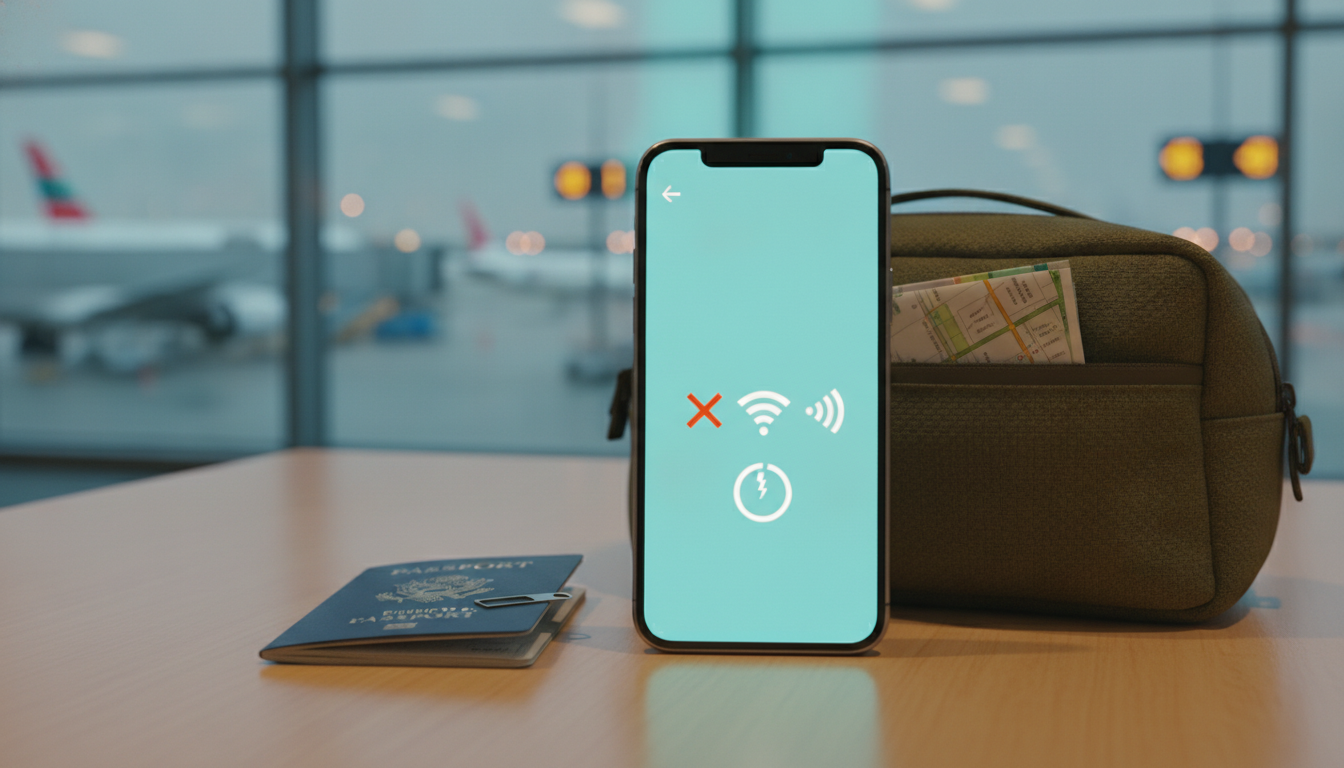
Lotsotravel eSIM activation usually fails for one of four reasons: the eSIM was installed without internet, the wrong line is selected for mobile data, roaming is disabled, or the plan has not reached its activation area. The fix is normally found by checking those settings in order rather than deleting the eSIM immediately.
Check the plan before changing your phone
Lotsotravel sells destination-based travel eSIM plans, so activation depends on the country covered by the plan and the provider network assigned to it. The available plan structure can vary substantially:
| Lotsotravel plan detail | Published example |
|---|---|
| Chad entry plan | $58.95 USD |
| Chad entry allowance | 5GB |
| Chad entry validity | 5 days |
| Chad plan range | 5GB to 50GB |
| Chad validity range | 5 to 30 days |
| United Arab Emirates entry plan | $8.95 USD |
| UAE entry allowance | 0.5GB per day |
| UAE entry validity | 5 days |
| Europe example | 10GB for 15 days |
The Chad plan information lists 16 plans, ranging from 5GB to 50GB with validity from 5 to 30 days. The UAE listing starts at $8.95 for 0.5GB per day over 5 days, while a Europe example provides 10GB for 15 days.
These are destination-specific listings, so do not assume that a plan purchased for Chad will work in another country.
Before troubleshooting the phone, verify:
- The destination is included in the Lotsotravel plan.
- The plan has not expired.
- The eSIM is still present under Cellular or Mobile settings.
- The phone is carrier-unlocked.
- The device supports eSIM technology.
Lotsotravel is shown by the MyBestSim comparison data with a rank of 70, a listed “−60% unlimited” promotion, and no assigned rating or promo code. That means a discount label should not be treated as a universal code: if the checkout page does not display a code, do not invent one or apply a code from another provider.
Install the eSIM without triggering the first failure
Use a reliable connection
An eSIM profile is downloaded during installation. If the airport Wi-Fi login page has not been accepted, the phone may appear to scan the QR code but fail before the profile is installed.
Connect to a stable Wi-Fi network first, then keep the Lotsotravel QR code or activation details visible on another screen. If the QR code is displayed on the same phone, use the manual activation details supplied with the purchase instead of trying to scan your own display.
The technical framework behind consumer eSIM provisioning is GSMA Specification SGP.22, which defines the remote provisioning process used by compatible devices. It does not guarantee that every phone is unlocked or that every destination plan is supported; those remain device and plan conditions.
Confirm that the profile actually installed
On an iPhone, open Settings > Cellular and look for the new line. On many Android phones, the path is Settings > Network & internet > SIMs, although the wording varies by manufacturer.
The useful sign is not merely “Add eSIM.” The Lotsotravel line should appear as a separate cellular plan with its own label. If the QR code reports that it is invalid or already used, stop scanning repeatedly.
A profile can be treated as assigned after installation begins, and deleting it may prevent reinstallation without provider assistance.
I always start by checking whether the eSIM appears in the phone’s SIM list before changing network settings. If it is absent, the problem is installation; if it is present but has no service, the problem is usually activation, roaming, network selection, or coverage.
Restore mobile data in the correct order
-
Turn on the Lotsotravel line.
Open the SIM or Cellular settings and enable the Lotsotravel line. The sign that this worked is that the line remains enabled after leaving the settings screen. If it switches off, the device may be rejecting the profile or the plan may not be properly installed. -
Select Lotsotravel for cellular data.
Under Mobile Data or Cellular Data, choose the Lotsotravel line. A common mistake is leaving the home SIM selected: the phone then shows signal from the domestic line but has no travel data. On an iPhone, also check whether “Allow Cellular Data Switching” is enabled; disabling it prevents the phone from silently moving data back to the wrong SIM. -
Enable data roaming on the travel line.
Many travel eSIMs connect through a partner network, so roaming must be enabled for the Lotsotravel profile even though you are not using your home carrier’s roaming package. Enable roaming on the travel line, but keep data roaming disabled on the home SIM to avoid unexpected charges. -
Turn off Wi-Fi and test one website.
A Wi-Fi connection can hide an activation problem. Turn Wi-Fi off, open one ordinary webpage, and wait for the cellular indicator to appear. If the phone shows “SOS,” “No service,” or “Emergency calls only,” data settings alone will not solve the issue: the phone has not registered with a partner network. -
Restart the phone.
A restart forces the modem to reload the active SIM configuration. If the line was installed while the phone was offline or while another SIM controlled data, this can complete registration without reinstalling anything. -
Try manual network selection.
Automatic selection can choose a network that accepts the phone’s signal but not the Lotsotravel roaming agreement. Disable automatic network selection temporarily and test the available operators one at a time. Wait after each choice; a successful registration normally replaces “No service” with signal bars and a network name.
The APN trap
Some eSIMs require a specific Access Point Name, or APN. The APN tells the mobile network which data gateway to use.
If Lotsotravel supplied an APN, enter it exactly as written, including capitalization and punctuation, in the cellular data settings.
Do not copy an APN from a random travel blog. A valid APN for one provider can produce a connection failure on another, even when the eSIM shows full signal.
After saving the APN, toggle airplane mode once and retest cellular data.
If the phone has signal but websites still do not load after the correct APN is entered, check whether the plan is data-only. A data-only eSIM will not provide a normal telephone number for voice calls or SMS, although messaging apps can work through its data connection.
What the most common error messages mean
“Unable to complete cellular plan change”
This usually points to an installation or device-compatibility issue rather than weak coverage. Confirm that the phone supports eSIM and that it is unlocked by checking whether a different carrier SIM can be used.
On iPhone, Settings > General > About > Carrier Lock should show that there are no restrictions.
If the QR code has already been used, do not erase the Lotsotravel profile while experimenting. Record the error message, the device model, and the eSIM identifier shown in settings before contacting support.
“No service” after installation
When the profile is visible but there is no service, the usual sequence is: enable the line, select it for data, enable roaming, restart, and try manual network selection. A plan purchased for the wrong country will not become functional through APN changes.
A practical field warning: if you arrive with both SIMs active and the home line retains automatic data switching, the phone can jump between lines during network registration. That creates intermittent service and may also generate home-carrier roaming charges.
Keep the Lotsotravel line as the only cellular-data choice until testing is complete.
When deleting the eSIM makes the problem worse
Deleting is the last step, not the first. An eSIM profile is not a disposable QR image in the same way as a Wi-Fi password; the provider may need to issue a replacement or reset the installation status.
Before removal, capture:
- The exact error message.
- The phone model and operating-system version.
- The Lotsotravel order number.
- The eSIM ICCID shown in the device settings.
- The country and city where activation is being attempted.
- Whether the line appears under SIM settings.
- Whether signal bars appear with roaming enabled.
If the profile is installed but data remains unavailable, use verified eSIM voucher codes for international travel data discounts only when reviewing a future purchase; a voucher cannot repair a profile that is already installed incorrectly. For a new purchase, checking the latest eSIM promo code information is useful before checkout, but the destination, validity, and activation conditions still determine whether the plan will work abroad.
The final diagnostic is the line status: an installed Lotsotravel profile with signal but no data points toward APN or data-line selection, while a profile with no network registration points toward coverage, roaming partnership, an unsupported destination, or an account-side activation issue.
FAQ
Why does my Lotsotravel eSIM show no service?
A visible Lotsotravel profile with no service usually means the phone has not registered with a partner network. Confirm that the travel line is enabled, select it for mobile data, activate roaming, restart the phone, and try manual network selection. Also verify that your destination is covered by the purchased plan.
How can I install Lotsotravel eSIM without errors?
Install the eSIM while connected to stable Wi-Fi, with the QR code available on another device. If the code appears on the same phone, enter the supplied activation details manually. Afterward, check the SIM settings to confirm that the Lotsotravel profile appears before changing network settings or scanning repeatedly.
Why is Lotsotravel data not working abroad?
The home SIM may still control mobile data, or roaming may be disabled on the Lotsotravel line. Choose Lotsotravel under cellular data, disable automatic data switching, enable roaming only for the travel profile, then turn off Wi-Fi and test a webpage. If signal exists without data, check the supplied APN.
What should I check before deleting my eSIM?
Do not delete the profile until you record the error message, device model, operating-system version, order number, ICCID, location, and line status. A QR code may become unavailable after installation begins, and removal can require provider assistance. If the profile remains installed, troubleshoot network settings first.
How long does Lotsotravel activation take after installation?
Activation generally completes after the profile is installed, selected for data, and registered with a supported partner network. Restarting the phone or choosing a network manually may help registration. If service does not appear after those steps, the plan could be outside its coverage area or require account-side support.

Emma Rossi
Emma is a travel and consumer-tech writer who hunts down the best deals for getting online abroad. At eSIM Vouchers she tracks verified coupons from the major providers and explains how to redeem them for the lowest price on travel data.